Tag: listing-prep

  • How to resize your printable art images in less than 60 seconds (at print quality)

    How to resize your printable art images in less than 60 seconds (at print quality)

    Cropping your art into more ratios means more sizes to sell and more chances at a sale, but for each ratio, you cut the crop by hand, get the framing right, save the file, and rename it, and that adds up fast. Printprep.art cycles through every popular ratio, so you approve each crop in seconds. It sends every crop straight into the mockup tool, so you never save a single file yourself.

    Why one crop does not cover every ratio

    A crop you make for a 2:3 portrait does not fit a 4:5 or a 1:1 square without moving the crop box again, because the frame shape changes.

    A floral illustration, cropped two ways

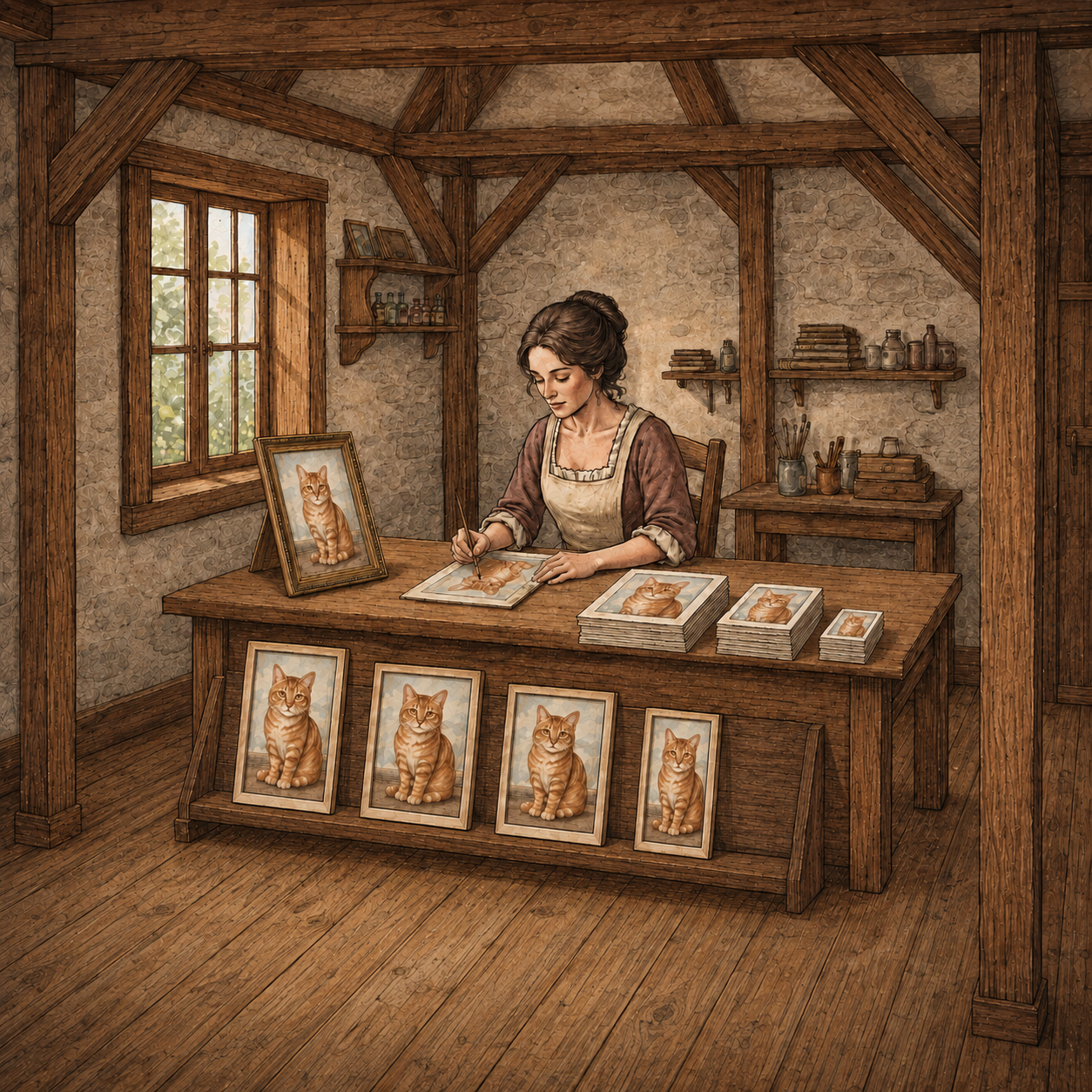
    Say your design is a tall floral illustration with the bouquet centered in the upper third. Crop it to 2:3 portrait and that framing looks intentional.

    Crop the same file to 1:1 square without adjusting anything, and the crop box pushes the bouquet to one edge, or slices the stems off entirely. A square frame samples a completely different slice of the image than a portrait crop does.

    What that costs you by hand

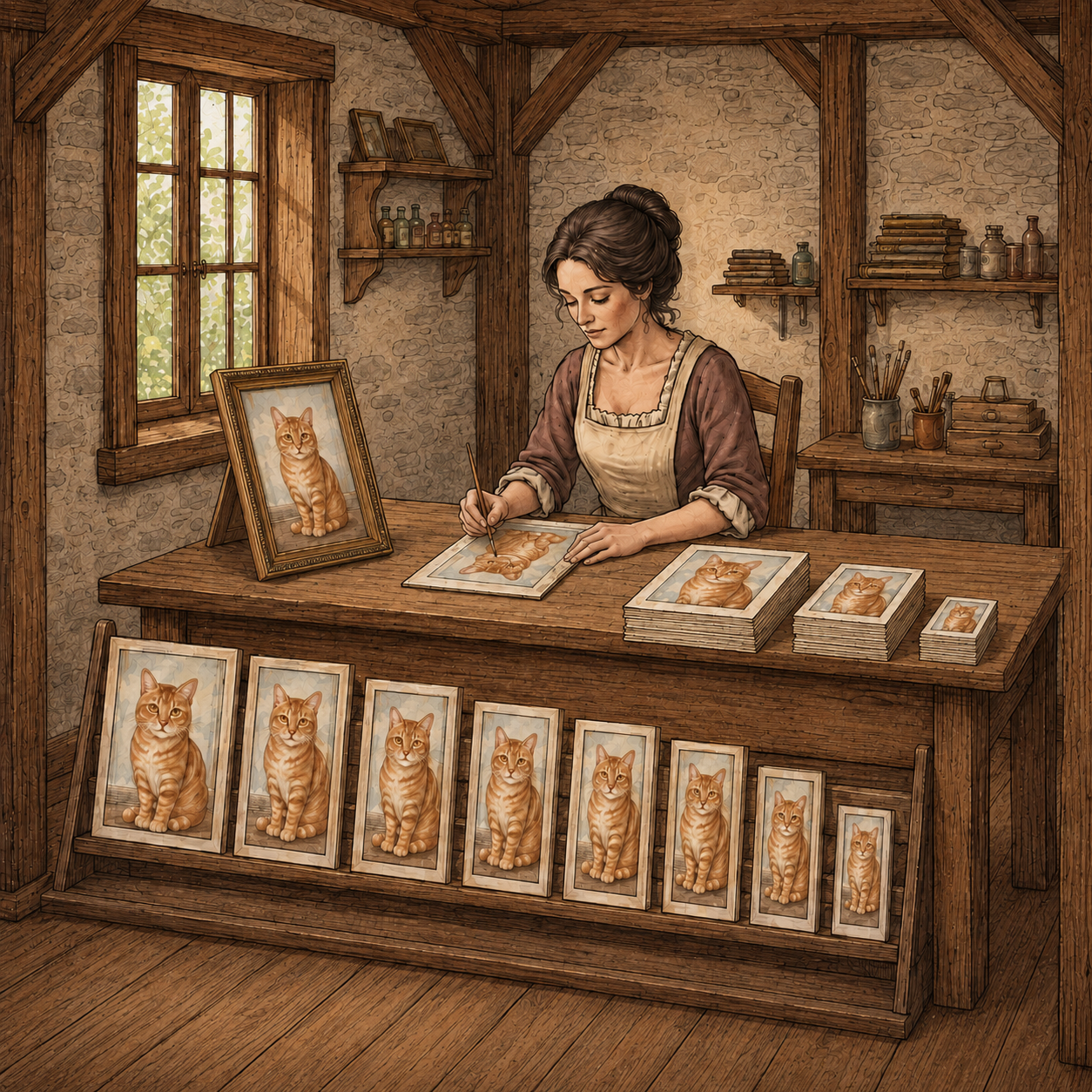
    Sellers who prep by hand in Photoshop usually reposition the art once per ratio, then repeat that same move for every new design they list. That means checking the composition and adjusting the zoom until the subject reads correctly again, every single time.

    The fix: crop settings that remember themselves

    Printprep.art saves your crop position, zoom level, and background color as a separate record for each ratio, tied to that specific artwork. Set up your 2:3 portrait once: position the crop box, pick a background color if the art needs padding, choose your sizes.

    That configuration stays exactly as you left it. Move to 1:1 square and start fresh there too, without disturbing what you already set for portrait.

    The next time you reopen that same artwork, whether it is five minutes later or three weeks later, every ratio you touched loads back exactly how you left it. Nothing resets, and nothing makes you re-decide a crop you already got right.

    Spend more time on art and less on art preparation tasks.

    What this looks like start to finish

    • Portrait, landscape, and square each live in their own catalog inside the crop tool, so a portrait ratio like 2:3 never gets mixed into the same size list as a landscape ratio like 3:2. You are always choosing sizes from the right shape family.
    • Printprep.art selects Bestseller and Popular sizes by default in every ratio, so you are not researching which of dozens of possible dimensions is worth your time before you even start cropping.
    • Printprep.art saves your crop position, zoom, and background color per ratio, and pre-fills all of it the next time you open that artwork.

    From digital file to printable art Etsy listing in 10 minutes.

    You’re spending 1-2 hours on prep for every listing. We handle the tedious parts so you can list more art for sale.

    Prep your next design once, not five times.

  • Where to find mockup templates for your printable art (plus one way to mock up that saves hours)

    Where to find mockup templates for your printable art (plus one way to mock up that saves hours)

    You do not have a design background, and a mockup tool that hands you layers, masks, and a blank canvas is not going to teach you one before your next listing is due.

    Why most mockup tools assume you already know how to composite an image

    Building a mockup in Canva or Photoshop means placing your art into a room photo, scaling it to look believable, adding a shadow so it reads as a real object, and doing that once per size and once per scene.

    What that looks like in practice

    Picture dropping your art onto a stock living room photo in Canva. You resize it by eye until it looks roughly right, but nothing in the image tells you what “roughly right” actually means in inches.

    Make it too big and the art reads as a sticker slapped over the photo. Make it too small and a buyer scrolling past your listing will not register it as the statement piece it is meant to be.

    The redo tax

    Get the scale wrong in either direction and you have to redo it, once per size and once per scene. A mockup correctly scaled for a 16×20 print looks wrong again the moment you swap in the file for a 24×36.

    That judgment call, translating a print size into believable scale inside a photo, is exactly the design-background step most sellers do not have.

    What Printprep.art does instead

    You pick a scene and, if you want one, a frame. Every scene Printprep.art offers has a reference object built into it, something in the photo with a known real-world size, like a piece of furniture or a window frame.

    Printprep.art uses that reference to work out exactly how many pixels represent one inch in that specific photo, then places your art into the scene at that true-to-size scale relative to the room.

    You are not eyeballing whether a 16×20 print looks too big over that sofa. Printprep.art already worked out the scale.

    Scene styles include Japandi, Minimalist, Farmhouse, Mid-Century Modern, Bohemian, and Craftsman, staged across rooms like the bathroom, kitchen, entryway, hallway, and bedroom. You can also generate an optional square image with your art in the top two-thirds and your shop logo in the bottom third, ready to use as your first listing photo, the one a buyer sees before they ever click into the full gallery.

    Replace Photoshop, Kittl, Canva, and Topaz.

    What you still control

    • Which scene and room fit the art’s style
    • Whether you add a frame, and which one
    • Which generated mockups become your actual Etsy listing photos

    Spend more time on art and less on art preparation tasks.

    See the real cost of a 4-tool workflow for the full math on what mockups alone were costing you before.

    Generate your first mockup without opening a design tool.

  • 3 ways to sell more printable art (and post your listings faster)

    3 ways to sell more printable art (and post your listings faster)

    Add up what a new listing actually costs you before a single sale comes in, and the number is bigger than any one subscription bill.

    The four tools, and what each one does

    A typical printable-art prep workflow looks like this: Photoshop to crop and resize the file for each ratio, Topaz to upscale it to a printable resolution, and Kittl or Canva to build room mockups for the listing photos. Then comes the part with no dedicated tool at all: staring at a blank title field and guessing at tags and titles by hand.

    Every handoff is a chance to lose track

    Every handoff between those tools means exporting a file from one, tracking down where it saved, and re-importing it into the next, correctly, for every ratio you are prepping.

    Miss a step and you catch it three tools later, when the mockup looks wrong because you imported the wrong version by mistake.

    Four separate subscriptions. Four separate interfaces. One file that has to survive all of them before it’s ready to list.

    The time math

    You’re spending 1-2 hours on prep for every listing. That is not one long task, it is several short ones stacked back to back.

    Where the time actually goes

    Cropping each ratio in Photoshop alone takes fifteen or twenty minutes. Then you wait on an upscale to finish in Topaz, watching a progress bar instead of making art.

    Building mockups in Kittl or Canva takes another twenty or thirty minutes, nudging the art until the scale looks right.

    The part with no clock on it

    Then comes the part with no clock on it at all: you sit with a blank title field, second-guessing tags, wondering if the words you picked are the words a buyer would actually search.

    None of those steps feels unreasonable on its own. Stacked back to back, across four different interfaces, they become the 1-2 hours that stand between a finished design and a live listing.

    Multiply that by however many designs you are trying to list this month.

    Prep time becomes the actual ceiling on how much you can sell, not your ability to make new art.

    What one workflow changes

    Replace Photoshop, Kittl, Canva, and Topaz. Printprep.art carries one uploaded file through crop, upscale, mockup, and listing copy in a single guided workflow, so you never have to export the file from one tool and re-import it into the next.

    We handle the tedious parts so you can list more art for sale.

    From digital file to printable art Etsy listing in 10 minutes.

    Prep your next design in one workflow instead of four.

  • What print sizes sell best on Etsy? (Sell the sizes buyers want to buy)

    What print sizes sell best on Etsy? (Sell the sizes buyers want to buy)

    Buyer demand for printable art doesn’t spread evenly across every size you could offer. It concentrates in a short list: a handful of classic portrait ratios, one square lineup, and two A-Series paper sizes for international buyers. Everything else barely sells.

    You know how printable art prep steals the joy from making art? Part of that theft is guesswork over sizes. Printprep.art is a printable art studio. It transforms an art file into a complete Etsy listing in about 10 minutes, using the sizes buyers actually order. You get back the joy of making art, instead of guessing at crop dimensions.

    The research behind the sizes

    Printprep.art classifies every offered size into four demand tiers: Bestseller, Popular, Low Demand, and Very Low Demand. The classification comes from real buyer-demand research, not a guess about what feels popular. The tiers tell you where to spend your prep work and where you’re wasting it.

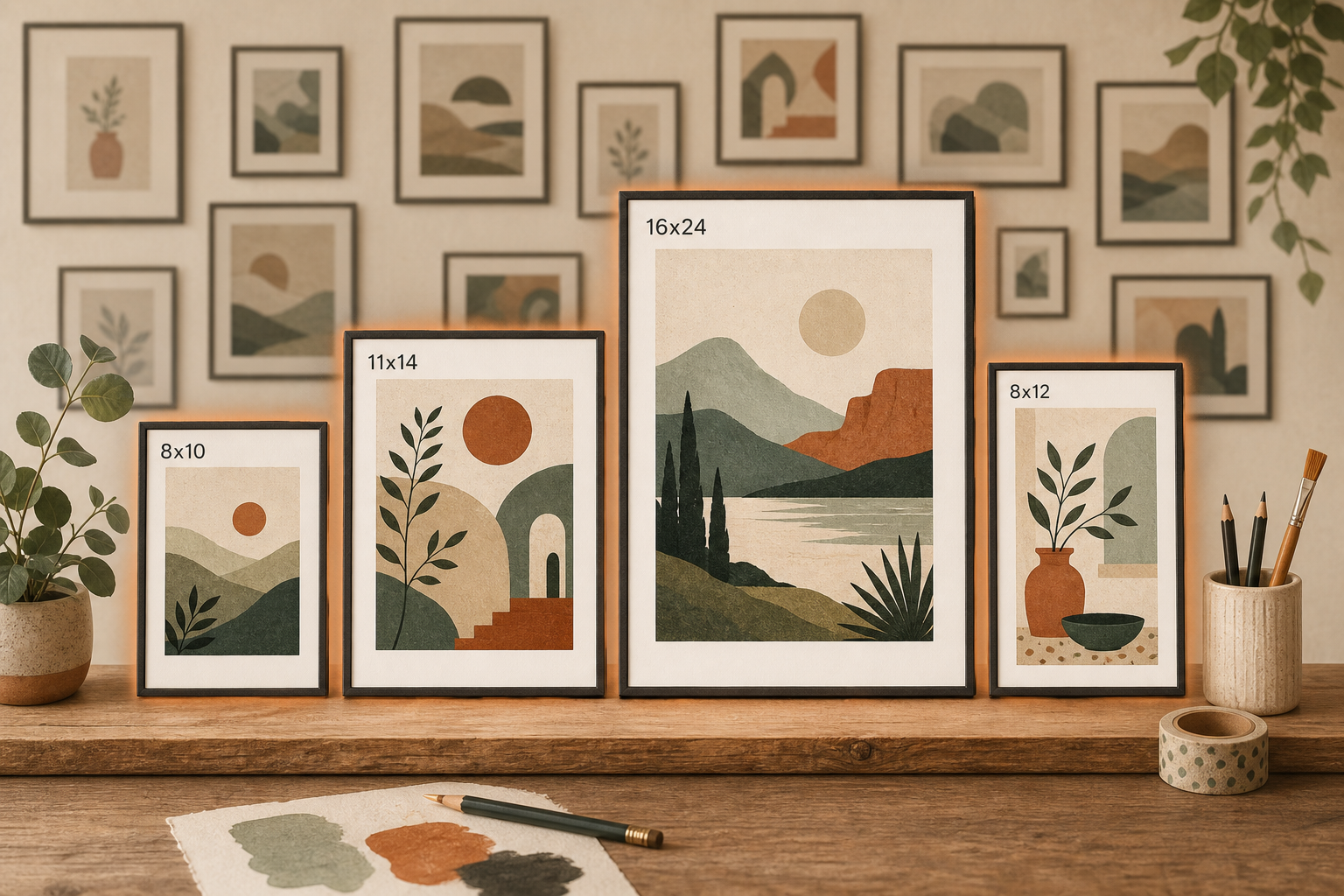
    A gallery wall of framed art prints in varied sizes, a few glowing warm in the foreground while many more fade into shadow behind them
    Buyer demand doesn’t spread evenly across every possible size. It concentrates in a short list of Bestseller and Popular sizes, while the rest barely sell.

    Where the bestseller demand concentrates

    Across every ratio Printprep.art offers, the sizes that actually sell come down to this:

    Orientation Ratio Bestseller sizes
    Portrait 2:3 4×6, 8×12, 12×18, 16×24, 20×30, 24×36
    Portrait 3:4 9×12, 12×16, 18×24, 30×40
    Portrait 4:5 8×10, 16×20
    Portrait 5:7 5×7
    Portrait Letter / near-Letter 8.5×11, 11×14, 11×17
    Landscape 3:2 6×4, 18×12, 36×24
    Landscape 4:3 24×18, 40×30
    Landscape 5:4 10×8, 20×16
    Square 1:1 8×8, 10×10, 12×12, 16×16, 20×20, 24×24

    If you only crop one ratio for a new design, 2:3 carries the widest bestseller range, from a small 4×6 print up to a 24×36 poster. Landscape isn’t a mirror of portrait. It has its own shorter list, and square sits in a lane of its own.

    What about international buyers?

    A4 and A3 are Bestseller sizes in both portrait and landscape orientation. If you sell to buyers outside the US, those two A-Series sizes cover most of that demand on their own. You don’t need the full A-Series lineup in your default crop.

    For listings that need a large-format international option, Printprep.art also supports A0 at 841×1189 mm in portrait and 1189×841 mm in landscape. A0 is an optional Low Demand size, so it stays out of the default selection but is available whenever you want to offer it. A-Series files use exact ISO millimeter dimensions; inches are intentionally omitted.

    Popular sizes worth adding, once you’ve covered Bestseller

    A second tier, Popular, sells less often than Bestseller but still sells:

    • Portrait: 6×9, 10×15, 40×60
    • Landscape: 9×6, 15×10, 60×40

    Low Demand and Very Low Demand sizes exist in the catalog too. Most sellers can skip them entirely.

    What this means for your prep work

    Every maker deserves to spend her time creating, not preparing. Cropping eight sizes when two of them ever sell is prep work you didn’t need to do. Printprep.art shows Bestseller and Popular sizes by default in the crop tool for this exact reason. Low Demand, Very Low Demand, and Samsung TV Art sizes stay in an optional dropdown, so you only add them when you want them.

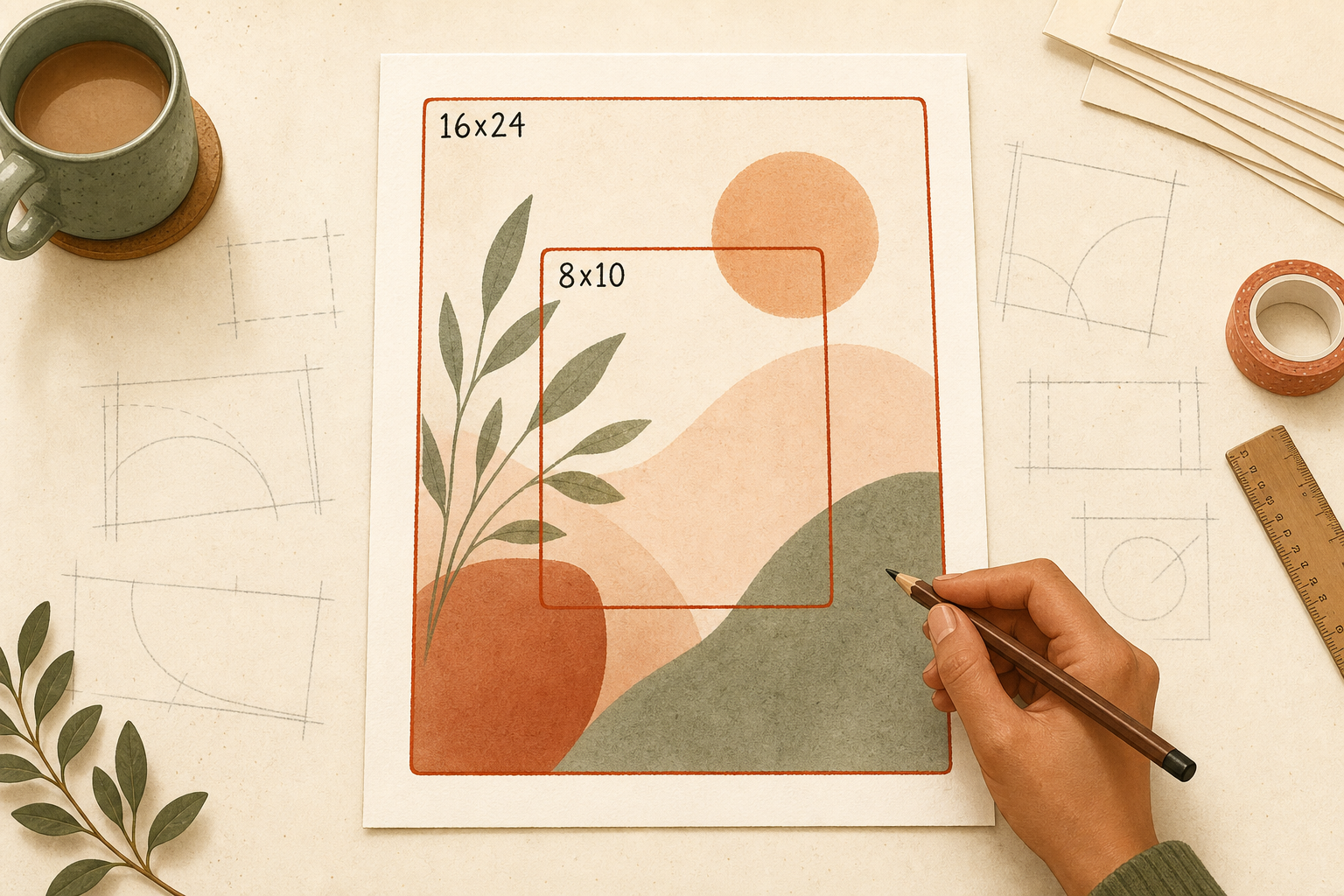
    An art print on a desk with two confident crop guide outlines drawn over it, while several faint unused crop sketches sit scattered around the edges
    Cropping eight sizes when only two of them ever sell is prep work you didn’t need to do. Printprep.art shows Bestseller and Popular sizes by default so you can skip the rest.

    Start with the Bestseller list for your ratio. Add Popular sizes if you want more price points. Skip the rest until a buyer specifically asks.

    Start your free account and crop your next design against real buyer demand instead of a guess.